Advanced guides
Add SearchCue to a Cargo Collective site
Cargo Collective is a website builder. It does not include a full site-search feature.
You can add SearchCue to a Cargo Collective site. This guide explains two ways to make search available.
For help, email support@searchcue.com.
Ways to use SearchCue
Visitors can open SearchCue from a link or use a search input.
Preparation
First, add the SearchCue script tag to your site.
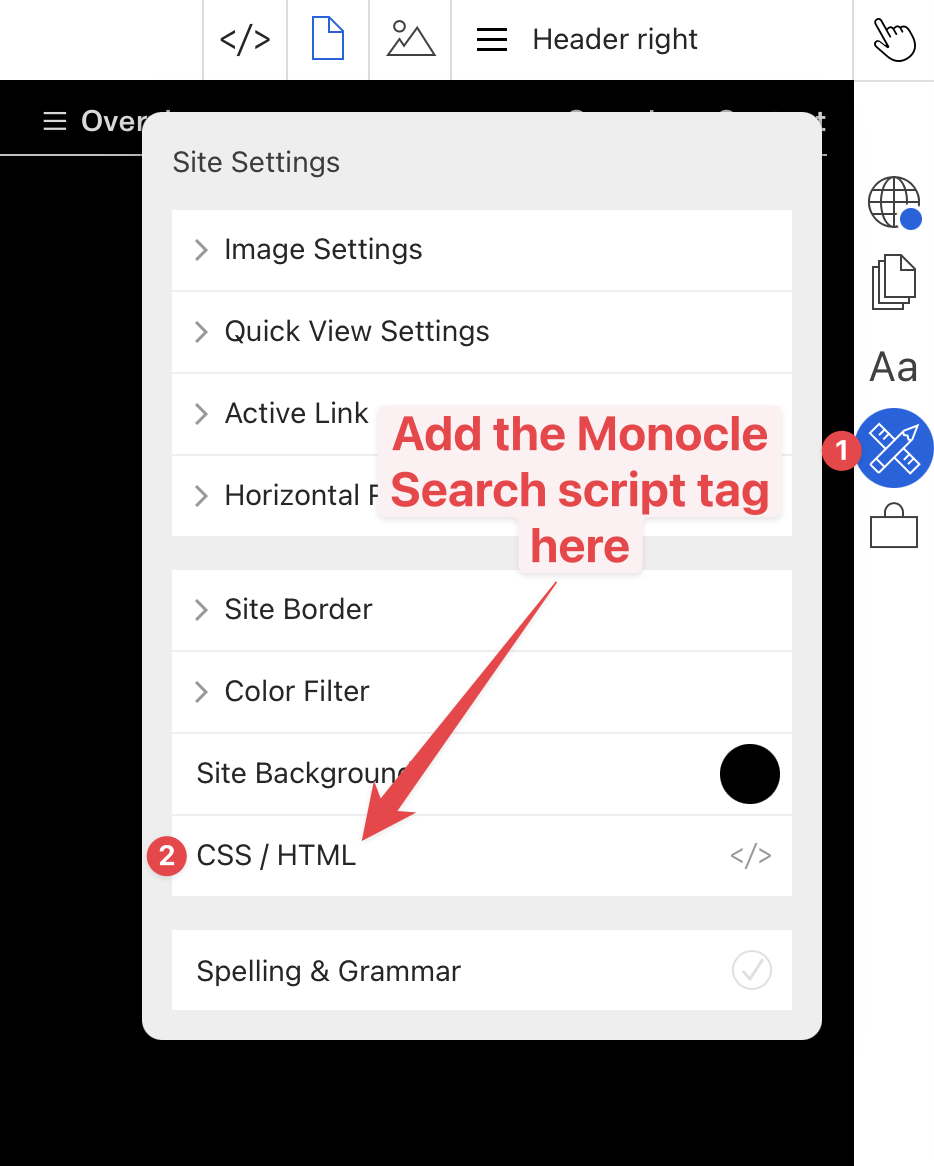
Create an account and add your site to get a personalised script tag. Then open the CSS / HTML editor under Settings in the Cargo editor:
Paste your SearchCue script tag into the HTML editor:
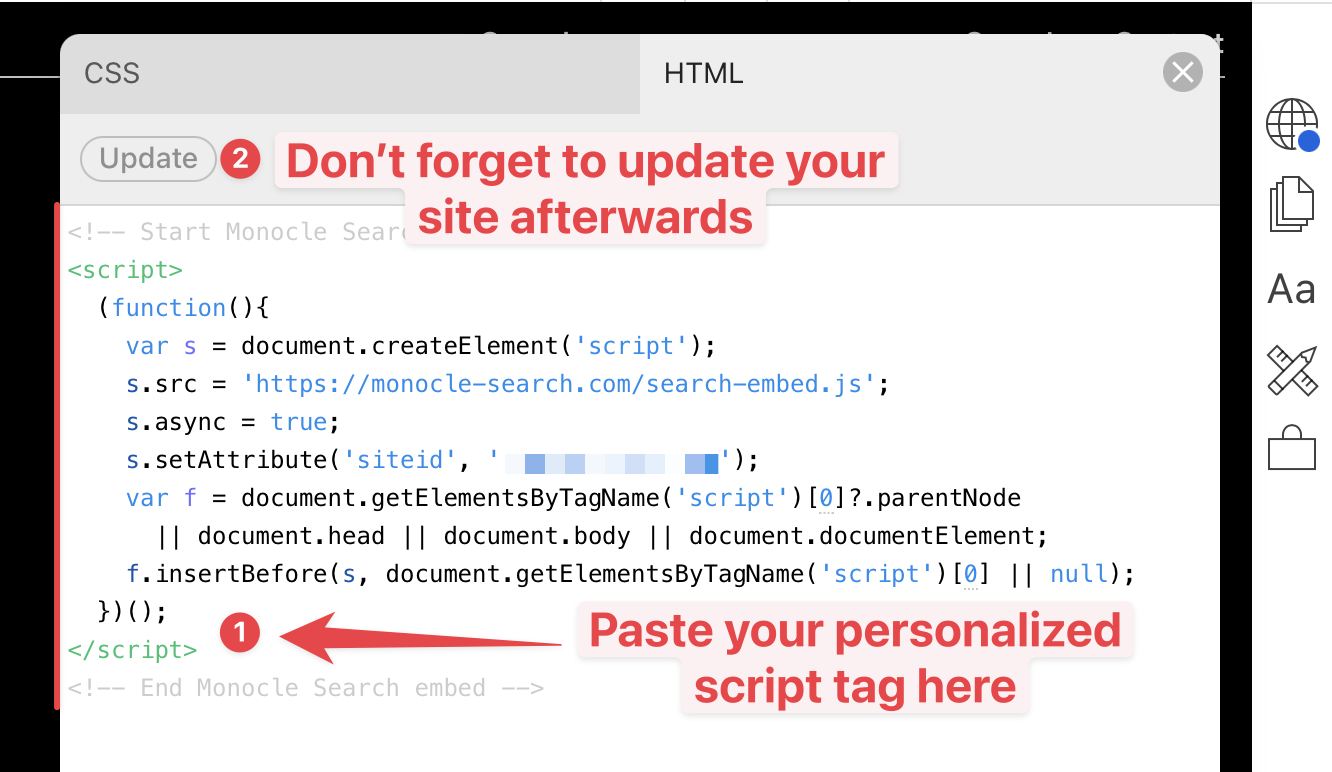
Select Update to save the script tag.
Search from any page
To let visitors open search from any page, add a link called Search to the site navigation or footer.
- Add the SearchCue embed to your site.
- If the site has no suitable header or footer, follow Cargo Collective's Add a site footer guide.
- Add a link with the URL
/searchto the header or footer.
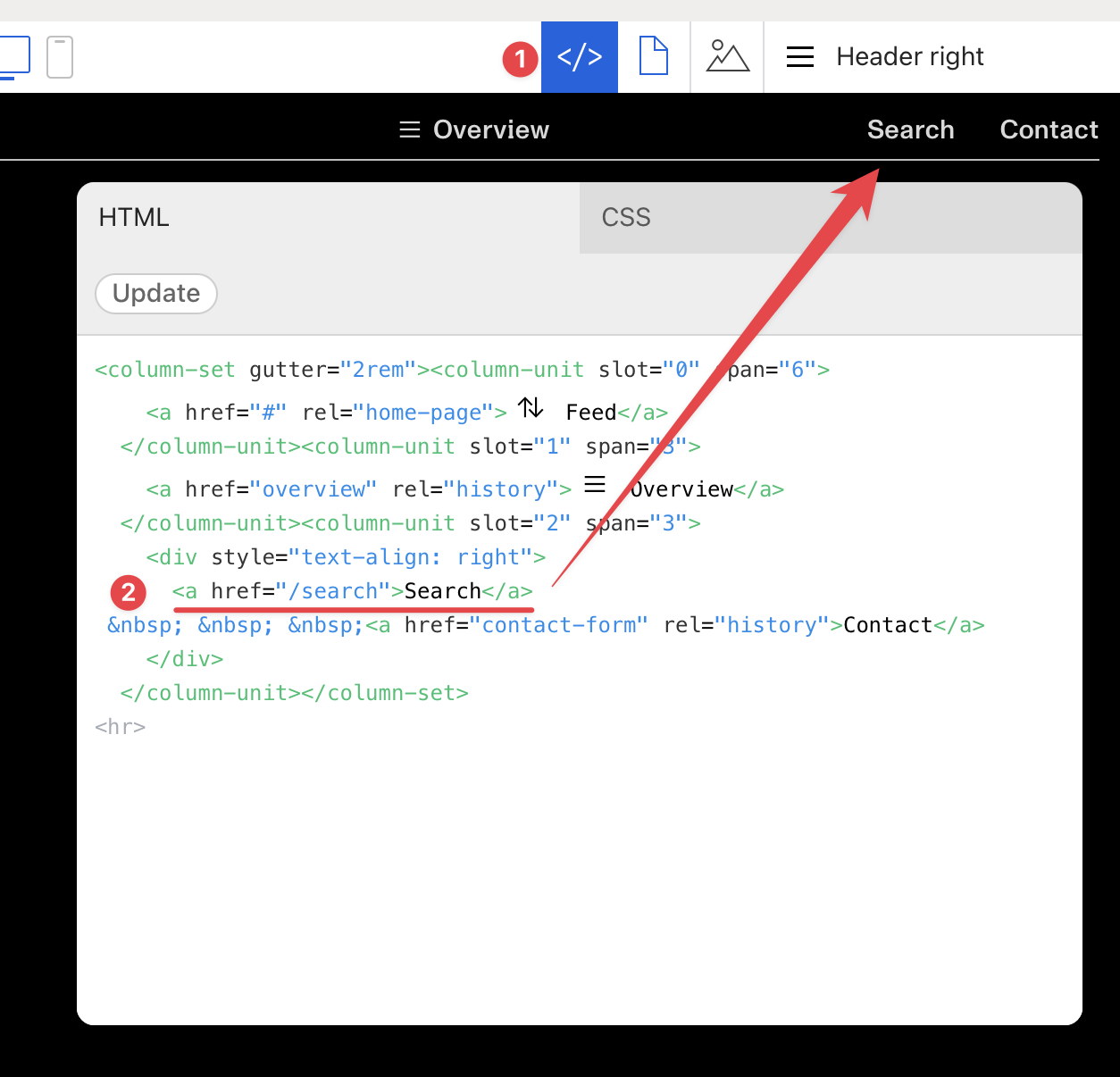
Publish the site. Visitors can now use the Search link to open the search interface.
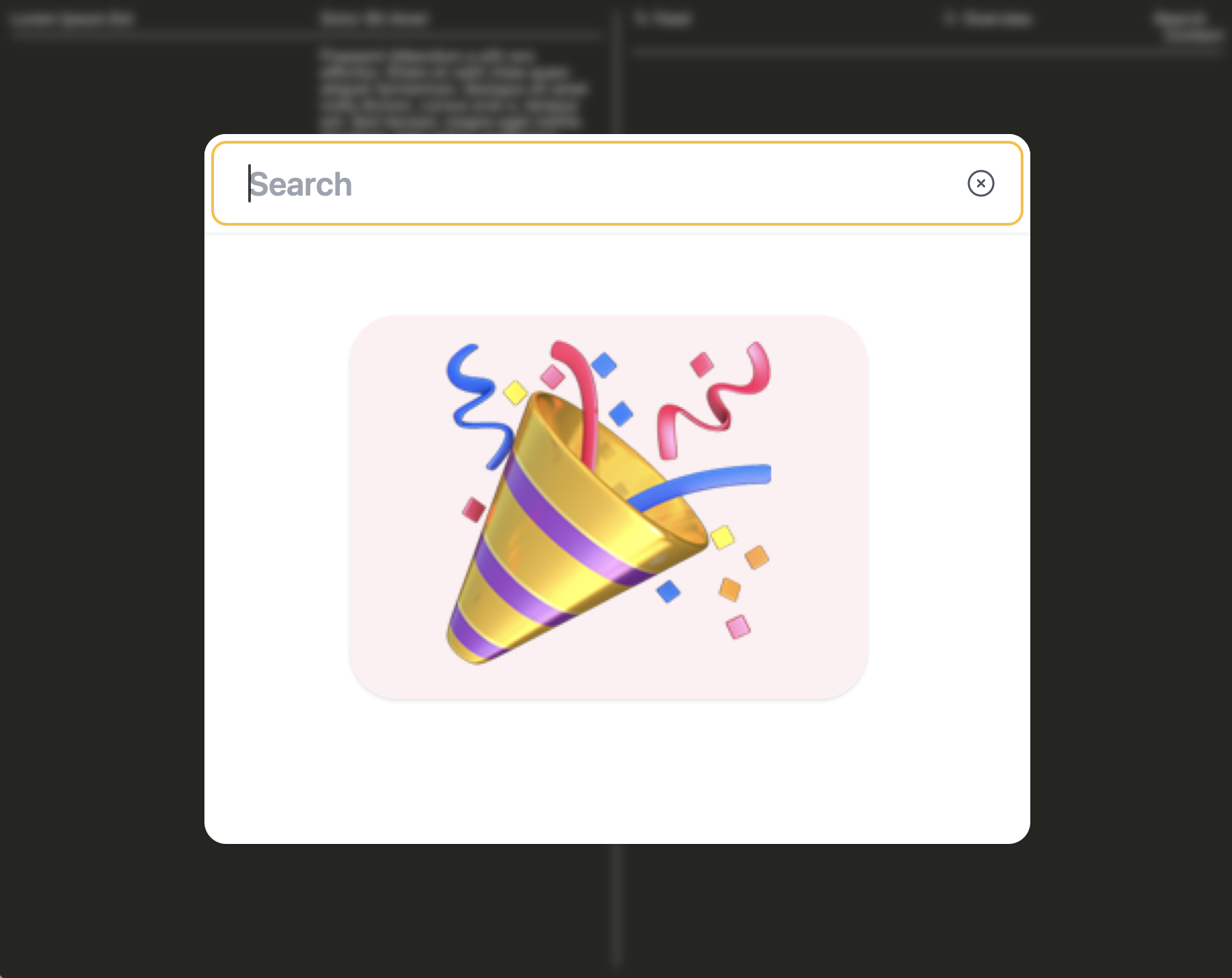
Use the SearchCue admin interface to change the design of the search interface.
Any link to /search opens the search interface. A full URL that ends in /search, such as mysite.com/search, works in the same way.
Search using a search input
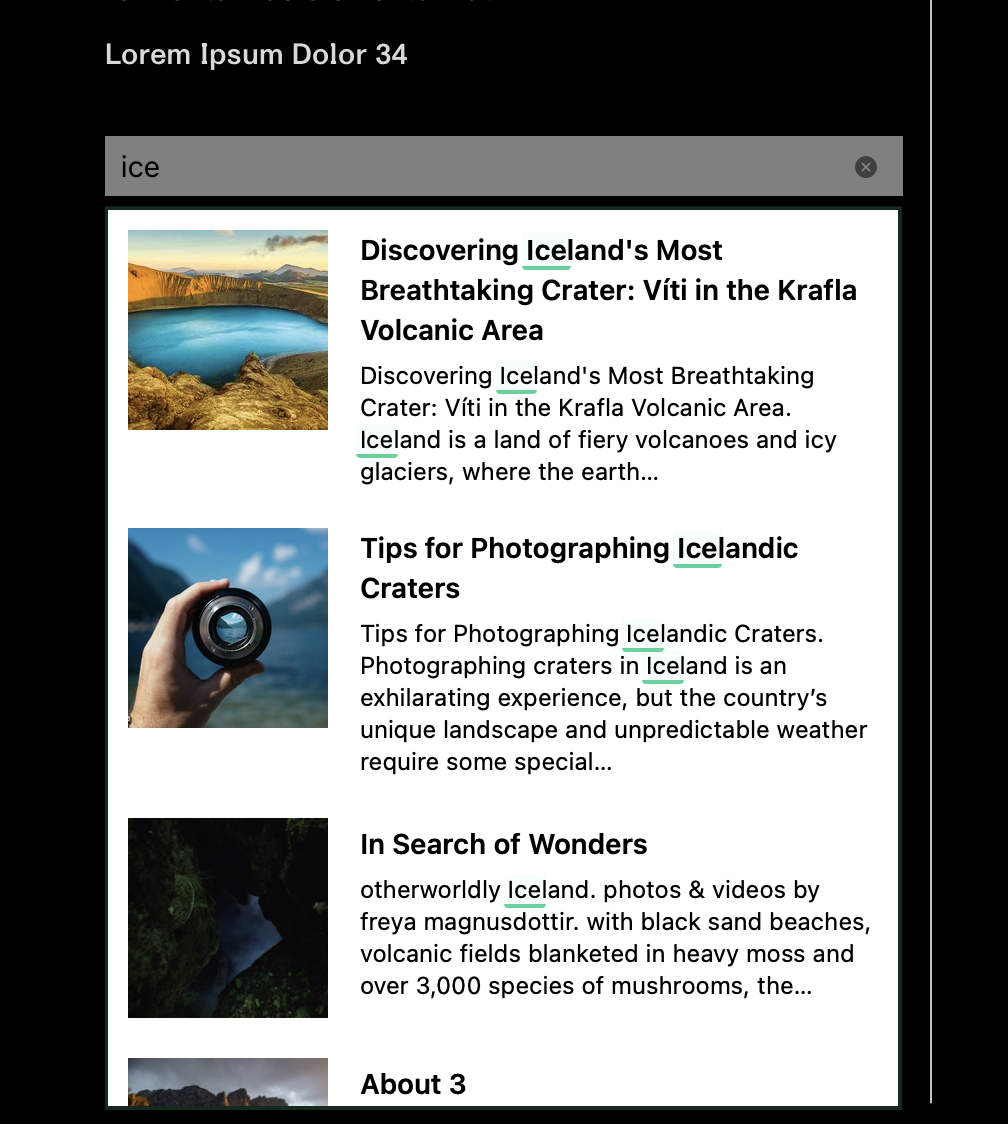
You can add a search input anywhere on the site. When an input has a type of search, SearchCue detects it and shows results as the visitor types.
- Add the SearchCue embed to your site.
- Add an input with a type of
searchto each page that needs a search input.
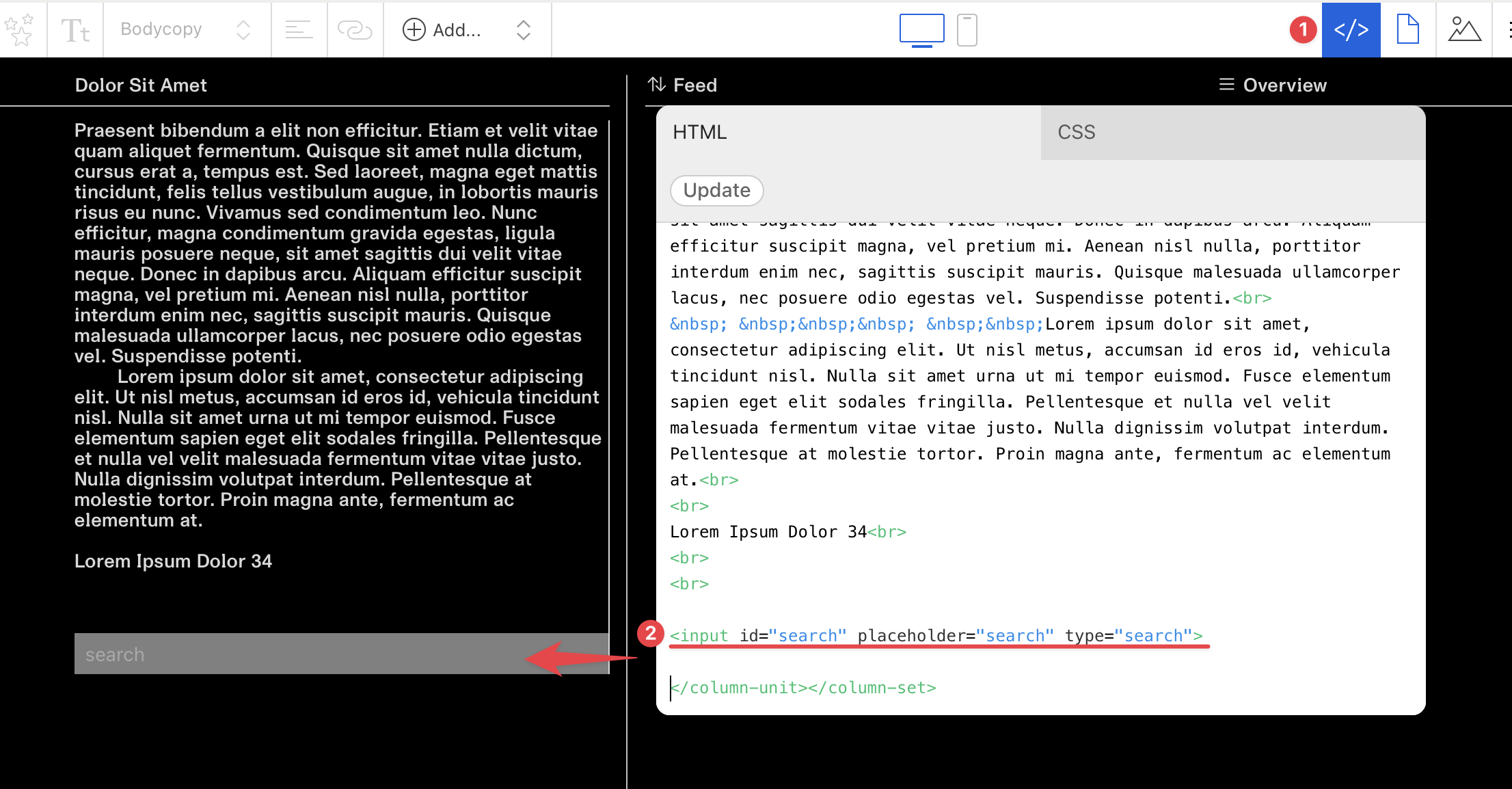
- Optional: add CSS to style the input. The input in the image uses this CSS:
input[type="search"] {
  padding: 4px 8px;
  width: 100%;
  background-color: rgba(255, 255, 255, 0.5);
}
With this setup, the search interface appears on the page as the visitor types:
For help with a Cargo Collective site, email support@searchcue.com.