Collections
Help visitors explore your content with SearchCue Collections
A Collection puts a searchable, filterable listing inside a page on your site. Visitors can browse before they type, narrow the results with filters, and open the original item.
Use a Collection for an article archive, a product catalogue, a resource library, or a selection of related content. You choose which indexed items it includes. The items stay in their original locations, so you do not need to maintain a second copy.
A Collection is different from the floating SearchCue search interface. It stays within the page and has its own content selection, filters, and design. You can use both on the same site.
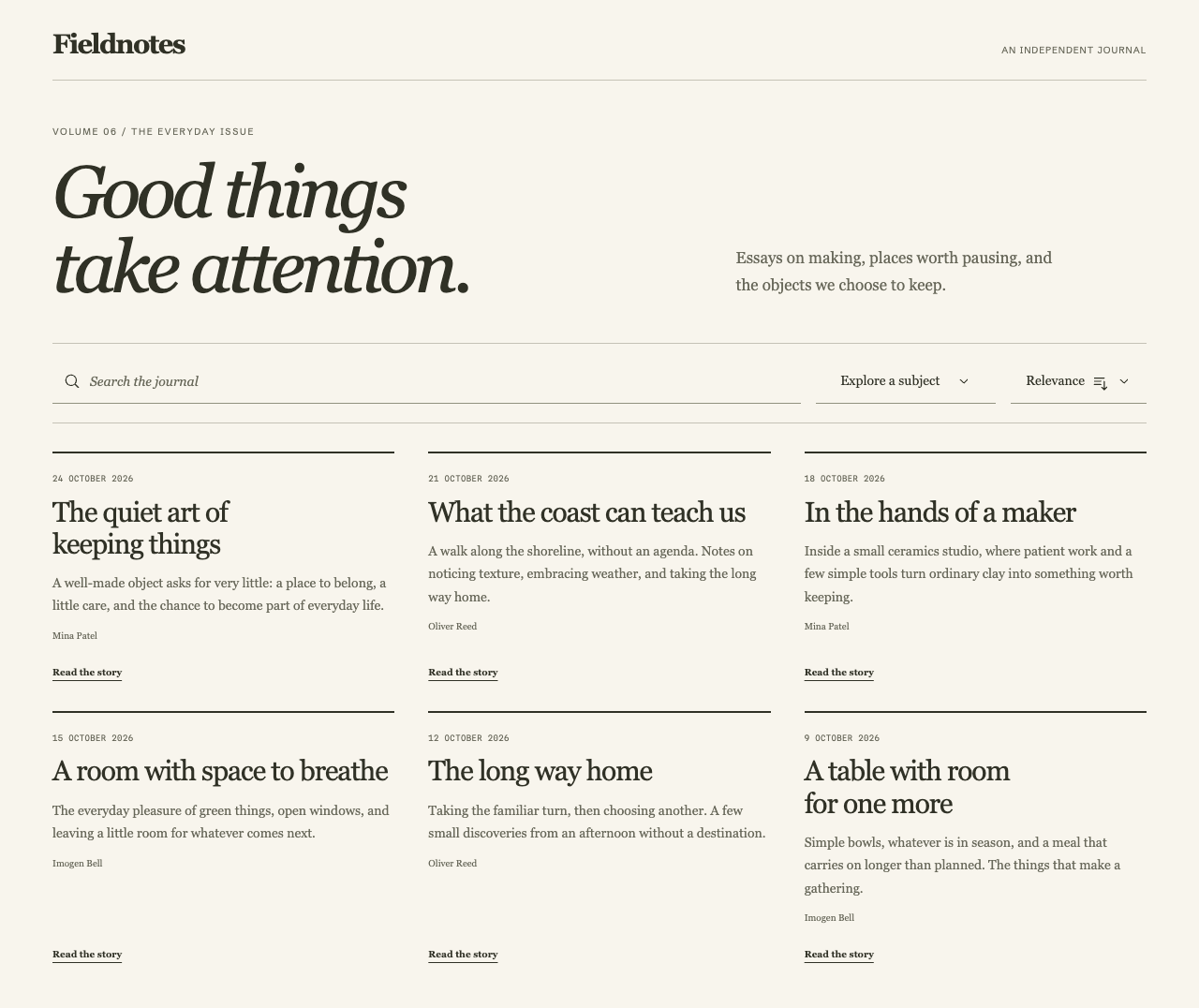
A custom Collection design with sample content. Try live Collections on our WordPress demo site.
Try the live examples
The SearchCue demo site runs on WordPress. These pages contain real SearchCue Collections:
- Field journal: browse articles and use the Author filter.
- Shop: explore a WooCommerce product catalogue.
- Still North Papers: search and filter a research-style archive with links to the papers and PDFs.
Still North is a fictional institute. Its catalogue, people, and illustrations are demonstration material. The papers are educational examples, not peer-reviewed research.
Check your site setup
Collections, the Design editor, images, and product search are included in SearchCue plans. Plan limits and an active service still apply. See the current plans and pricing.
Connect the site and let SearchCue index its content before you create the listing. Follow Getting started or the WordPress setup guide if needed.
Collections use the same indexed content and access rules as regular SearchCue search. They do not bypass restricted content or create a separate product catalogue.
Create a Collection
- Open your site in the SearchCue admin interface.
- Open Collections.
- Select Create a Collection.
- Edit Collection name in the toolbar. Choose a name that helps you identify it later.
- In Content, select the sources or paths to include. Use All content only if the listing should cover the whole available index.
- Check the preview. Open the advanced content settings if you need source-type switches or Content to show rules.
- Open Filters and choose the controls visitors need. Start with one or two useful filters.
- Use Search, Sort, Card designer, and Settings to set the behaviour and appearance.
Collection settings save automatically. Resolve any validation message before you continue. The embed snippet becomes available after the Collection has a valid saved configuration.
The content selection defines the Collection's scope. Visitor filters narrow that scope; they do not add excluded content. New or changed source content appears after SearchCue crawls or synchronises it.
The embed snippet identifies the Collection; it does not store its design or settings. Embed it once. Later changes to the design, filters, or other settings load through the same snippet, so you do not need to update the code on your site.
Embed it on WordPress
- Open Embed Collection in the Collection editor.
- Use Copy to copy the complete snippet. The collapsed code view still copies the full snippet.
- Open the WordPress page where the listing should appear.
- Add a Custom HTML block at the required position.
- Paste the whole snippet into the block's HTML tab.
- Save the page and open the published page.
Use the snippet in the page content, not in the page header. Keep its fallback message and Retry link. The standard snippet includes a loading placeholder. Expand the code view to find the shorter version without that placeholder.
The main WordPress editor can show a placeholder instead of running the embed. Edit code provides the block's live preview where supported. A preview does not replace a check of the published page and theme.
Embed it on another site
- Open Embed Collection in the Collection editor and copy the complete snippet.
- Open the page on your site. Add an HTML or code block that allows JavaScript where the Collection should appear.
- Paste the whole snippet into the page content, not the page header.
- Save the page and check the published result.
Keep the fallback message and Retry link. Some page editors show only the placeholder, so check the published page outside the editor.
Check the result
Try a query, select and clear a filter, change the sort order, and move to another result page. Open an item to confirm its destination. Check a narrow screen and use the keyboard as well as the pointer.
If the listing is empty, check the content selection, indexed content, service access, and active visitor filters. If it cannot load, keep the fallback visible and follow Troubleshooting.
Continue the setup
- Filters: organise native metadata into useful choices.
- Design: use the editor, or start a custom style.
- Customising Collections: use semantic CSS hooks and public JavaScript events.
- WooCommerce: make a custom shop front with supported add-to-cart controls.
- SEO: understand rendered links, crawlability, and host-site responsibilities.