Collections
Build a filterable WooCommerce shop front
A SearchCue Collection can provide a custom shop front for a WooCommerce site. Visitors can search products, use filters, compare prices, and add supported products to the existing WooCommerce cart.
The Collection is the browsing interface. WooCommerce still owns product options, live purchase eligibility, cart contents, checkout, payment, tax, shipping, and orders.
See the real SearchCue demo shop for a product Collection. Do not use a demonstration catalogue as evidence of a live fulfilment service.
Before you start
- Connect the WordPress site with the SearchCue setup guide.
- Let SearchCue index the products you want to show.
- Confirm that the native WooCommerce product pages, cart, and checkout work.
- Embed the Collection on that same WordPress site. Cart controls need its same-origin WooCommerce Store API.
Do not put a WooCommerce secret key, admin credential, or customer session token in page code. The built-in integration uses the visitor's existing cart session.
Create the product listing
- Open Collections and select Create a Collection.
- In Content, select the required products or product paths.
- Use the advanced source controls to make Products the only enabled source if you want price sorting.
- In Filters, enable useful categories or custom groups. Add the required price, stock, and sale controls.
- In Sort, choose the available orders and the Initial order.
- In Card designer, select the product fields, including Call to action.
- Select that field and use CTA action to choose Add to cart.
- Choose CTA appearance separately if you want a link or button presentation.
- Copy the snippet from Embed Collection into a WordPress Custom HTML block.
- Open the published page to check the listing and cart integration.
View product remains available as the link-only action. Changing the action is not the same as changing the label. A custom label should describe what the control actually does.
Editor previews are inert: they do not read or change a real cart. Check cart behaviour on a permitted test or staging shop, not by placing an unapproved live order.
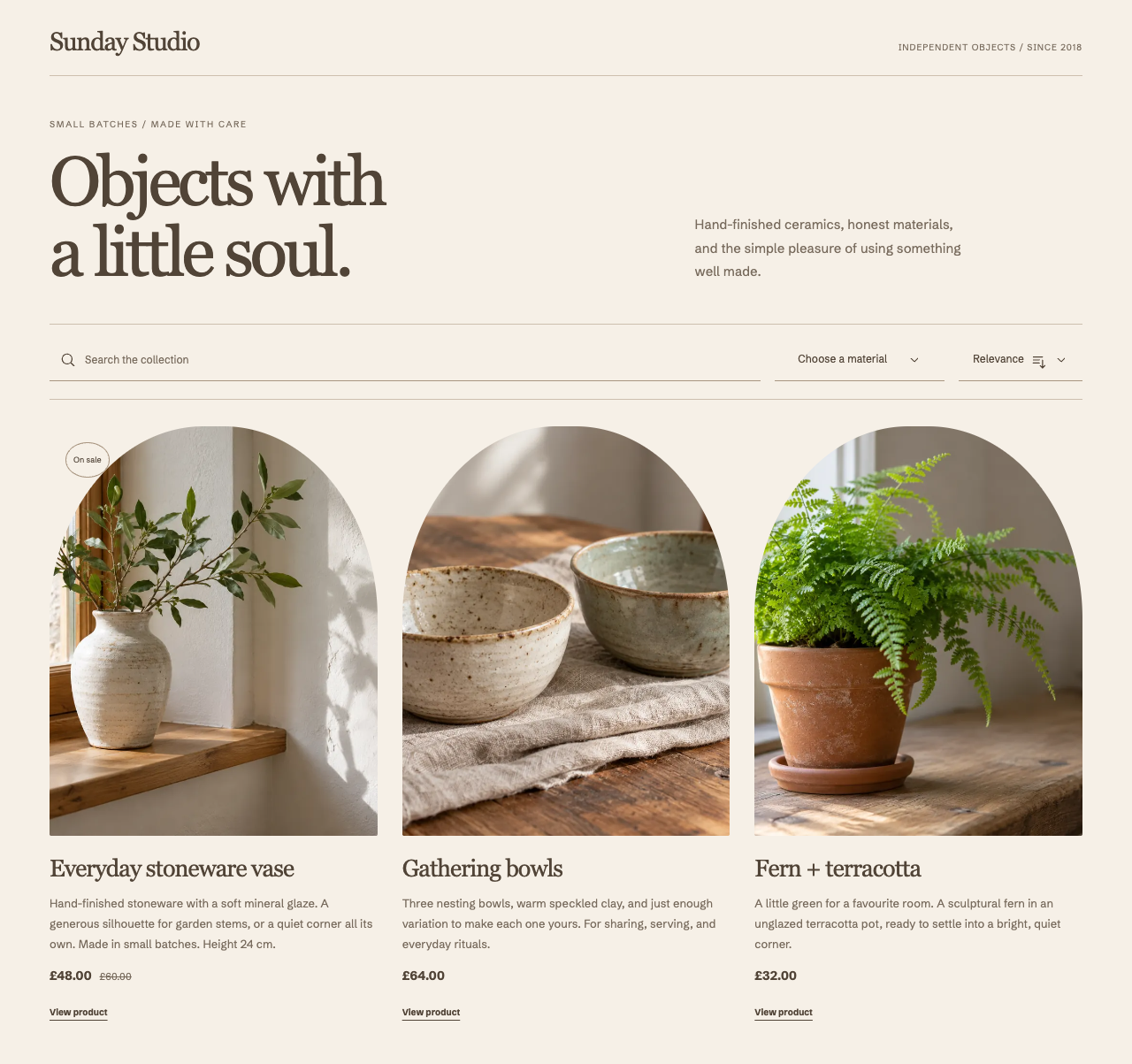
This screenshot shows the current Collection renderer with fictional data. It does not demonstrate a completed WooCommerce transaction.
Which products can be added directly?
Direct controls require a product that WooCommerce reports as a purchasable, in-stock simple product with no required options. The product ID and canonical permalink must agree. Quantity limits must be supported integer rules.
Where supported, the control can add the permitted minimum quantity, increase or decrease the quantity, and remove the item. It follows WooCommerce's minimum, maximum, step, and sold-individually rules.
The Collection keeps a product link when it cannot safely provide the direct action. This includes:
- variable products that need size, colour, or other choices,
- grouped, external, or other non-simple product types,
- products with unsupported customisation or cart-line data,
- fractional or unsupported quantity rules,
- ambiguous duplicate cart lines, and
- cases where the product identity, availability, or Store API cannot be confirmed.
It does not guess a variation or silently discard product options. Visitors complete those choices on the product page or in the native cart.
A previously added product that is no longer purchasable can still offer removal where supported. The presence of a product in search results is not permission to purchase it.
Keep WooCommerce as the source of truth
Search results contain indexed product data. It can lag behind a recent product edit. The cart integration separately checks live WooCommerce eligibility and quantities before enabling actions.
Built-in controls share a cart session and coordinate updates with supported native classic, Blocks, and Interactivity API carts. Do not maintain a second cart total from Collection results or treat inStock in a search event as final checkout authority.
If a cart update has an uncertain outcome, the integration does not blindly repeat the write. Let the cart refresh or inspect the native cart before trying again. Keep errors and product links visible so a visitor has a safe recovery route.
Design a custom shop front
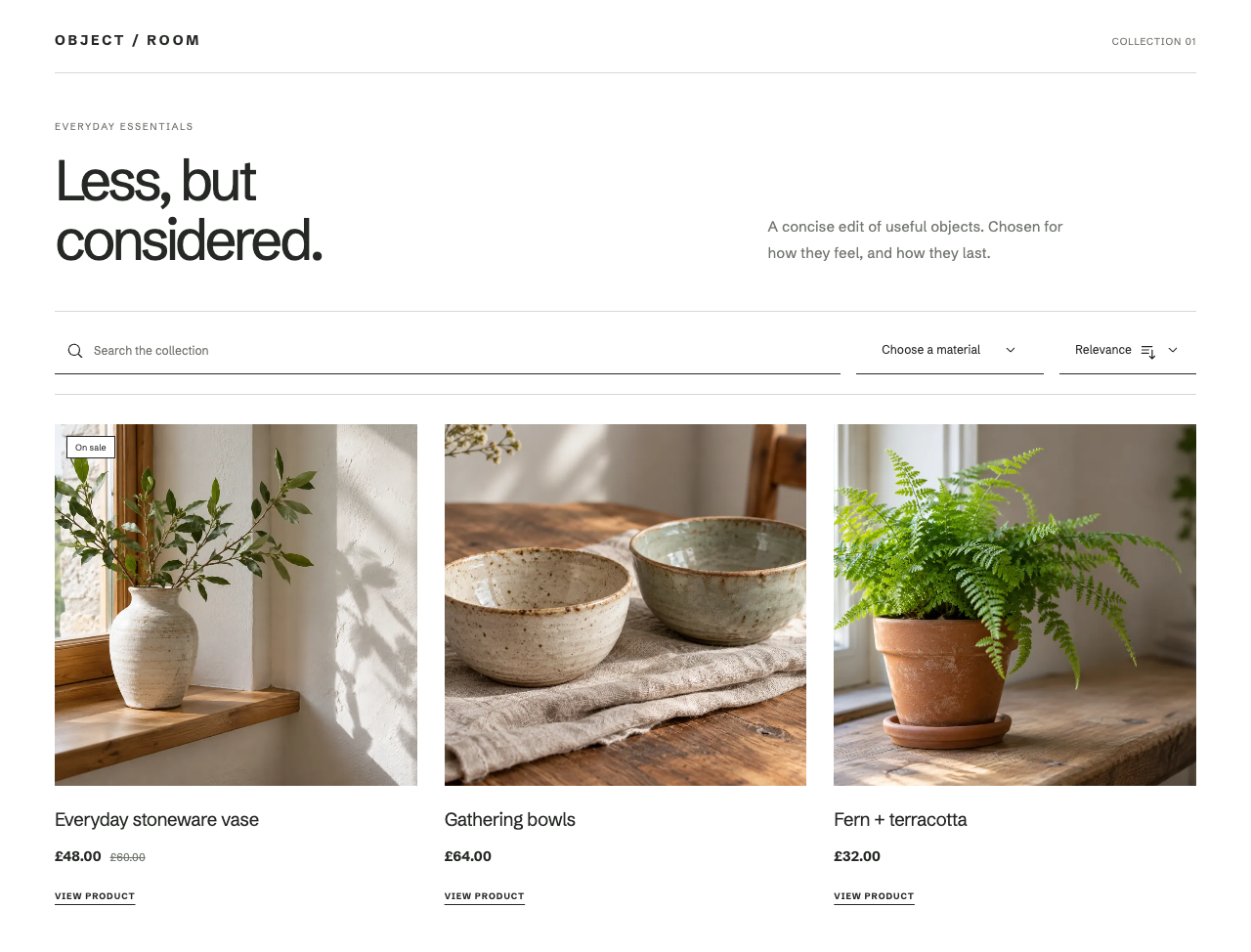
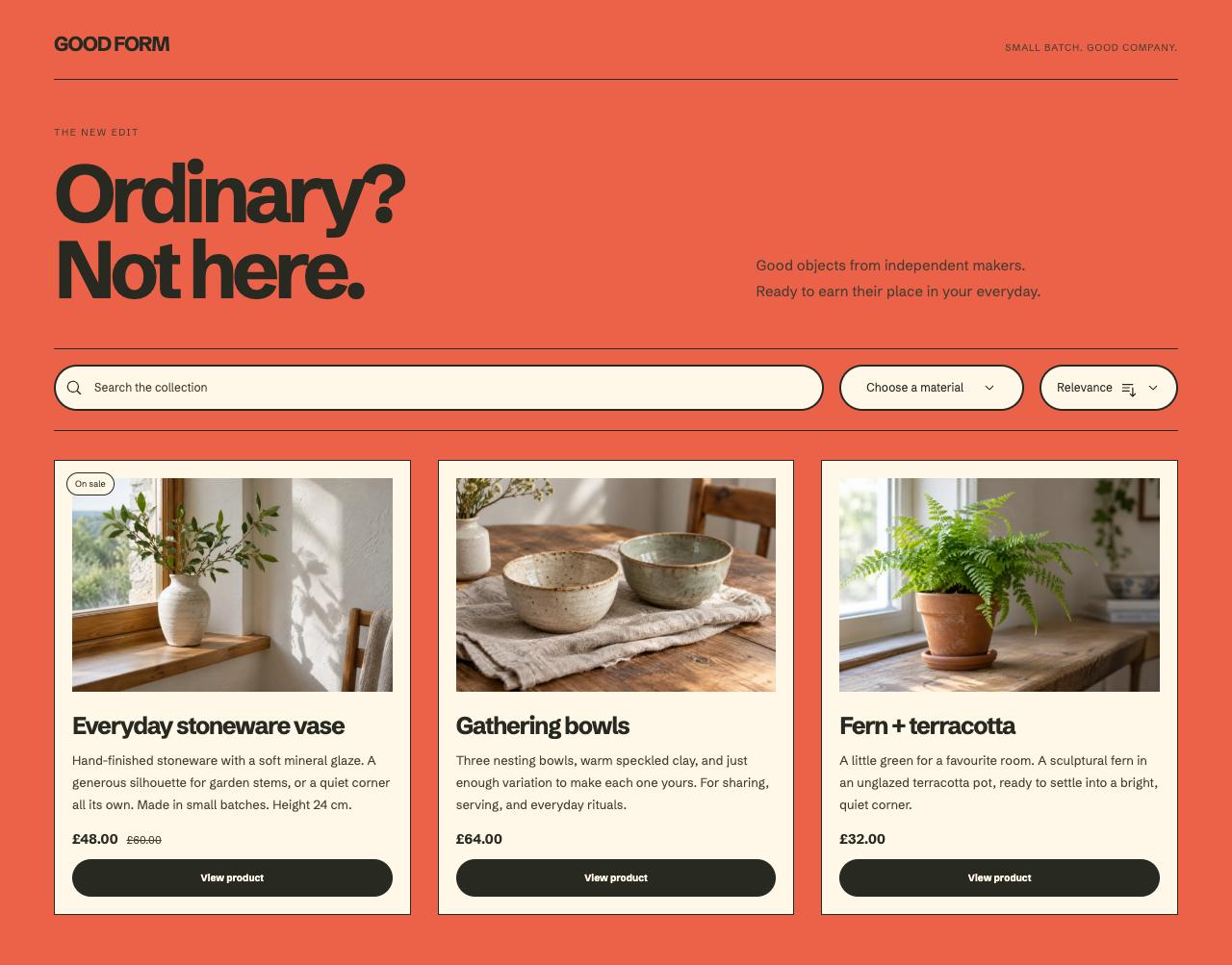
Use the editor for a finished grid, or choose Unstyled and apply scoped CSS. The Design guide shows several directions.
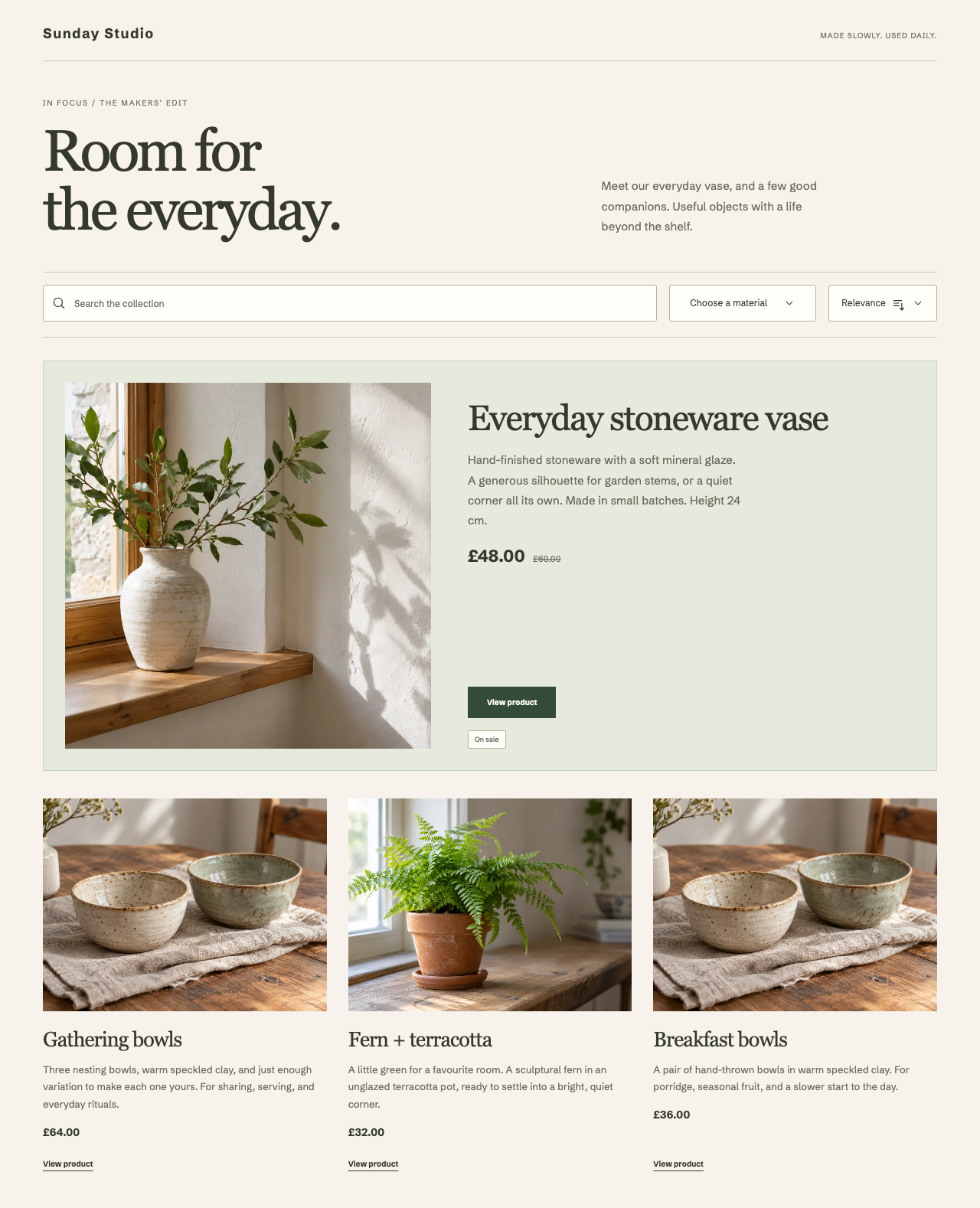
For a featured product, use .collection-boosted or .collection-pinned within the Collection scope. A wider image-left card can show the title, price, and a longer indexed excerpt beside the image. It still needs a useful layout on a phone.
Preserve the built-in cart controls when restyling cards. They are separate interactive elements, not content to place inside a product link. Useful hooks include data-collection-part="cart-controls", cart-add, cart-quantity, and cart-error. Do not replace their handlers with a guessed Store API request.
The public Collection events can drive a separate product comparison or shortlist. Those events are not a cart API. A wholly custom result interface must retain product-page links or use a separately implemented, tested WooCommerce integration.
Check before publishing
On a permitted test shop, check a simple product, a sold-individually item, a variable product, an out-of-stock product, and any product extension you use. Confirm that unsupported cases lead to the product page rather than dropping required choices.
Change a quantity in the Collection and in the native cart. Confirm that both views agree. Check a network failure, keyboard access, and a narrow screen. Keep the existing shop and product URLs reachable, and review SEO before replacing another listing.